HTML gives a webpage its structure, while CSS controls how that structure looks. To use them together, you need to connect your HTML document to your stylesheet.
The most common way to link HTML to CSS is by adding an external CSS file using the <link> tag inside the <head> section of your HTML document.
If you're learning how to link HTML to CSS, this guide walks you through the complete process with simple examples. You'll also learn how to connect CSS from different folders, use CSS in VS Code, and troubleshoot common problems when your stylesheet isn't loading.
Quick Answer: How to Link HTML to CSS
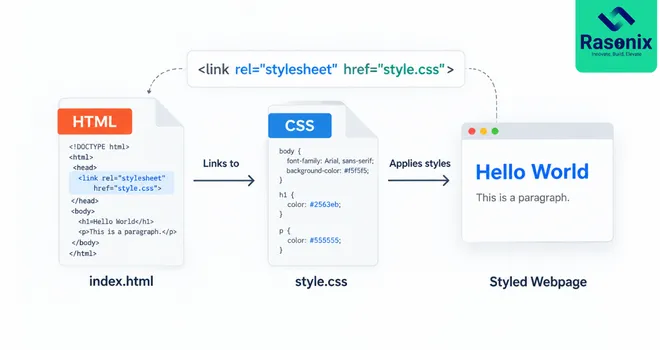
If your HTML and CSS files are in the same folder, add this line inside the <head> section of your HTML:
<link rel="stylesheet" href="style.css">
For example:
<!DOCTYPE html>
<html lang="en">
<head>
    <meta charset="UTF-8">
    <title>My Website</title>
    <link rel="stylesheet" href="style.css">
</head>
<body>

    <h1>Hello World</h1>

</body>
</html>
Here:
-
rel="stylesheet" tells the browser that the linked file is a stylesheet.
-
href="style.css" tells the browser where the CSS file is located.
If index.html and style.css are in the same folder, this is all you need to link CSS to HTML.
How to Link HTML to CSS Using an External Stylesheet
External CSS is usually the most practical approach for websites because your HTML structure and CSS styles remain in separate files.
It also allows the same stylesheet to be used across multiple HTML pages.
Here's how to set it up.
Step 1: Create Your HTML File
Start by creating a new file called:
index.html
Add a basic HTML structure:
<!DOCTYPE html>
<html lang="en">
<head>
    <meta charset="UTF-8">
    <meta name="viewport" content="width=device-width, initial-scale=1.0">
    <title>HTML CSS Example</title>
</head>

<body>

    <h1>Welcome to My Website</h1>
    <p>This page uses an external CSS file.</p>

</body>
</html>
At this point, the browser can display the content, but we haven't added any external styles.
If you're still learning the roles of these two technologies, our guide to HTML vs CSS explains how HTML handles page structure while CSS controls its visual presentation.
Step 2: Create Your CSS File
Next, create another file called:
style.css
Keep it in the same folder as index.html for now.
Your folder should look like this:
my-website/
│
├── index.html
└── style.css
This simple folder structure makes it easy for the HTML document to locate the stylesheet.
Step 3: Add Styles to Your CSS File
Open style.css and add some basic styles:
body {
    font-family: Arial, sans-serif;
    background-color: #f5f5f5;
    margin: 0;
    padding: 40px;
}

h1 {
    color: #222222;
}

p {
    color: #555555;
    font-size: 18px;
}
These rules tell the browser how the elements in your HTML document should appear.
However, the browser doesn't yet know that style.css belongs to index.html.
That's what the next step does.
Step 4: Link the CSS File to HTML
Open index.html and add the following line inside <head>:
<link rel="stylesheet" href="style.css">
Your HTML now becomes:
<!DOCTYPE html>
<html lang="en">
<head>
    <meta charset="UTF-8">
    <meta name="viewport" content="width=device-width, initial-scale=1.0">
    <title>HTML CSS Example</title>

    <link rel="stylesheet" href="style.css">
</head>

<body>

    <h1>Welcome to My Website</h1>
    <p>This page uses an external CSS file.</p>

</body>
</html>
The browser reads href="style.css", finds the stylesheet, and applies its rules to the HTML elements.
That's the basic process of how to link HTML to CSS using an external stylesheet.
Step 5: Test Your HTML and CSS
Save both files and open index.html in your browser.
You should see:
-
A light background
-
Dark heading text
-
Styled paragraph text
-
Additional spacing around the page
If you change something inside style.css, save the file and refresh your browser.
The updated style should appear.
Your complete setup should now look like this:
my-website/
│
├── index.html
└── style.css
index.html
<!DOCTYPE html>
<html lang="en">
<head>
    <meta charset="UTF-8">
    <title>My Website</title>
    <link rel="stylesheet" href="style.css">
</head>

<body>
    <h1>Hello World</h1>
    <p>My HTML and CSS are connected.</p>
</body>
</html>
style.css
body {
    font-family: Arial, sans-serif;
    background-color: #f5f5f5;
}

h1 {
    color: #2563eb;
}

p {
    color: #444444;
}
You now have a working HTML page connected to an external CSS stylesheet.
Understanding the HTML <link> Tag
When you link HTML to CSS, the most important line is:
<link rel="stylesheet" href="style.css">
There are two attributes beginners should understand.
rel="stylesheet"
The rel attribute describes the relationship between the HTML document and the linked resource.
In this case:
rel="stylesheet"
tells the browser that the linked resource contains CSS styles.
href="style.css"
The href attribute specifies where the CSS file is located.
For example:
href="style.css"
means the browser should look for style.css in the same folder as the HTML file.
The <link> element is normally placed inside <head> so the browser can discover the stylesheet while processing the document metadata.
How to Link CSS from a Different Folder
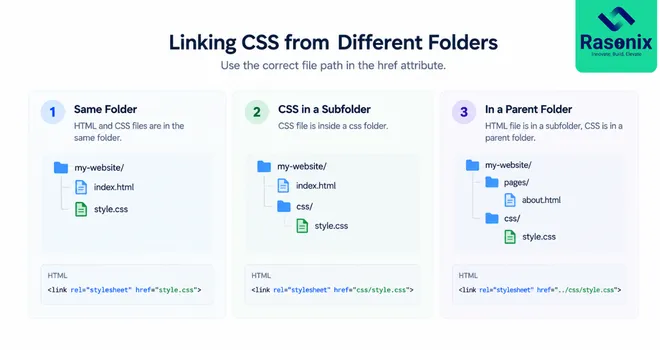
HTML and CSS won't always be stored in the same folder.
As projects grow, developers commonly organize stylesheets inside a dedicated CSS directory.
In that case, you need to make sure the href path points to the correct location.
1. CSS File Inside a Subfolder
Suppose your project looks like this:
my-website/
│
├── index.html
│
└── css/
    └── style.css
Because style.css is inside the css folder, use:
<link rel="stylesheet" href="css/style.css">
The browser starts from the location of index.html, enters the css directory, and finds style.css.
2. HTML and CSS in Different Folders
Consider this structure:
my-website/
│
├── pages/
│   └── about.html
│
└── css/
    └── style.css
From about.html, you first need to move out of the pages directory before entering css.
You can do that using:
<link rel="stylesheet" href="../css/style.css">
Here:
../
means "go up one folder."
Incorrect relative paths are one of the most common reasons CSS appears not to work even though the HTML and CSS themselves are valid.
3. Linking an External CSS URL
A stylesheet can also be hosted on another server.
In that case, the href can contain a complete URL:
<link rel="stylesheet" href="https://example.com/css/style.css">
This approach is often used when loading externally hosted stylesheets or other web resources.
How to Link HTML to CSS in VS Code
If you're using Visual Studio Code, the process of linking HTML to CSS is essentially the same.
1. Create a Project Folder
For example:
html-css-project
Open that folder in VS Code.
2. Create Your Files
Create:
index.html
style.css
Your Explorer panel should show:
html-css-project/
├── index.html
└── style.css
3. Add the Stylesheet Link
Inside the <head> section of index.html, add:
<link rel="stylesheet" href="style.css">
4. Save and Test
Save both files and open index.html in your browser.
If the stylesheet is linked correctly, your CSS changes should appear when you refresh the page.
VS Code doesn't require a special command to connect HTML and CSS. The important part is that the path specified in href correctly points to your CSS file.
Why Is My CSS Not Linking to HTML?
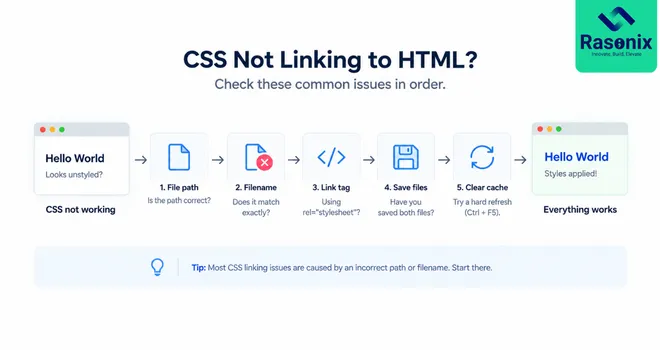
You've added:
<link rel="stylesheet" href="style.css">
but nothing changes.
This is a common problem when learning how to link HTML to CSS, and the cause is often something simple.
| Problem |
Likely Cause |
What to Check |
| No CSS appears |
Incorrect file path |
Check the value inside href |
| Stylesheet isn't found |
Wrong filename |
Confirm the exact CSS filename |
| File doesn't load |
Wrong extension |
Make sure the file ends in .css |
| Stylesheet isn't recognized |
Missing rel |
Use rel="stylesheet" |
| Changes don't appear |
Files weren't saved |
Save HTML and CSS |
| Old styles still appear |
Browser cache |
Refresh or clear cached files |
| Some styles fail |
CSS syntax error |
Check the CSS rules |
| CSS works on one page only |
Relative path is wrong |
Check each page's folder location |
1. Check the CSS Filename
These are different filenames:
style.css
styles.css
Style.css
Your href must match the actual filename and path used by the project.
2. Check Your Folder Path
If your CSS is here:
css/style.css
this won't work:
<link rel="stylesheet" href="style.css">
Use:
<link rel="stylesheet" href="css/style.css">
instead.
3. Make Sure Your Files Are Saved
If you change CSS but don't save style.css, the browser won't see your latest changes.
Save both files before refreshing the page.
4. Check Your CSS Syntax
Sometimes the CSS file is connected correctly, but a particular style doesn't work because the CSS rule itself contains an error.
For example:
h1 {
    color: blue;
}
is valid.
If you're specifically having trouble with images rather than the stylesheet itself, see our guide on fixing a CSS background image not showing in HTML for common path and styling problems.
3 Ways to Add CSS to HTML
External CSS is generally the most scalable option, but it isn't the only way to add CSS to HTML.
There are three common methods.
1. External CSS
External CSS stores the styles in a separate .css file.
<link rel="stylesheet" href="style.css">
This method keeps HTML and CSS separate and allows one stylesheet to be reused across multiple pages.
Best for: Multi-page websites and most maintainable web projects.
2. Internal CSS
Internal CSS is written inside a <style> element within the HTML <head>:
<head>

    <style>
        h1 {
            color: blue;
        }
    </style>

</head>
This can be useful when styles only apply to one HTML document.
Best for: Small standalone pages, prototypes, or page-specific styles.
3. Inline CSS
Inline CSS is written directly inside an HTML element:
<h1 style="color: blue;">Hello World</h1>
It can be useful for very small one-off styling needs, but relying heavily on inline styles can make larger projects harder to maintain.
Best for: Limited, element-specific styling where appropriate.
External vs Internal vs Inline CSS
| Method |
Where CSS Is Written |
Best For |
Reusability |
| External CSS |
Separate .css file |
Websites and multiple pages |
High |
| Internal CSS |
<style> inside HTML |
Individual pages |
Medium |
| Inline CSS |
Inside an HTML element |
Small one-off styles |
Low |
For most websites, external CSS provides the cleanest separation between content and presentation.
Best Practices for Linking HTML and CSS
Once you understand how to link HTML to CSS, a few simple habits can make your projects easier to maintain.
1. Use External Stylesheets for Reusable Styles
If multiple pages use the same design, keep shared styles in an external CSS file rather than repeating them on every page.
2. Keep Your Folder Structure Organized
A simple structure might look like:
website/
├── index.html
├── about.html
├── css/
│   └── style.css
└── images/
Predictable folders make file paths easier to understand and troubleshoot.
3. Use Clear CSS Filenames
Names such as:
style.css
main.css
layout.css
are easier to understand than vague filenames.
4. Check Relative Paths When Moving Files
Moving an HTML or CSS file can break existing relative paths.
Whenever you reorganize your folders, check the href values used by your HTML pages.
5. Avoid Unnecessary Inline Styles
Inline CSS can be convenient for small changes, but extensive inline styling makes reusable styles and future maintenance more difficult.
Conclusion
Learning how to link HTML to CSS is one of the first practical steps toward building complete webpages. For most projects, the simplest approach is to keep your CSS in a separate file and connect it through the HTML <head>:
<link rel="stylesheet" href="style.css">
From there, the main thing to remember is the file path. Whether your CSS sits beside the HTML file or inside a separate folder, href must point to the correct location.
Once the connection works, HTML can handle the structure while CSS handles the visual presentation, giving you a cleaner and more maintainable foundation for building websites.
Need More Than the Basics?
Building a production website involves more than connecting HTML and CSS. It requires responsive interfaces, maintainable frontend code, performance optimization, accessibility, and a structure that can grow with the product.
Rasonix provides frontend and website development services for businesses building or improving modern digital experiences. From responsive interfaces to complete web solutions, our development team helps turn requirements into reliable, user-friendly websites and applications.
Hire a Frontend Developer from Rasonix →
Frequently Asked Questions
1. How do I link HTML to CSS?
To link HTML to CSS, create a CSS file and reference it inside the <head> section of your HTML document:
<link rel="stylesheet" href="style.css">
If both files are in the same folder, the browser will load style.css and apply its styles to the HTML page.
2. Where should I put the CSS link in HTML?
Place the <link> element inside the <head> section:
<head>
    <link rel="stylesheet" href="style.css">
</head>
This allows the browser to discover the stylesheet while processing the document's metadata.
3. Why is my CSS file not linking to HTML?
The most common causes include an incorrect href path, wrong filename, incorrect file extension, unsaved files, CSS syntax errors, or a browser displaying cached styles.
Start by checking whether the CSS file exists at the exact path specified in href.
4. How do I link HTML to CSS in VS Code?
Create your HTML and CSS files inside your project, then add:
<link rel="stylesheet" href="style.css">
inside the HTML <head>. Save both files and open the HTML page in your browser.
5. How do I link CSS from another folder?
Use the relative path to the CSS file.
For example, if your stylesheet is stored in a css folder:
<link rel="stylesheet" href="css/style.css">
If you need to move up one directory first, you can use:
<link rel="stylesheet" href="../css/style.css">
6. Can I link multiple CSS files to one HTML page?
Yes. Add multiple <link> elements:
<link rel="stylesheet" href="reset.css">
<link rel="stylesheet" href="layout.css">
<link rel="stylesheet" href="style.css">
Be mindful of the cascade and source order when multiple stylesheets contain rules that target the same elements.
7. Is type="text/css" required when linking CSS?
For standard HTML5 documents, you normally don't need to add type="text/css" to a stylesheet <link>.
You can simply use:
<link rel="stylesheet" href="style.css">








 Subscribe Now